Troubleshooting iPhone sync issues
If the MyMojoHealth app cannot find your meter, or finds it but cannot sync your readings, start with the quick checks below. If they do not solve the problem, go to the section that matches what you see.
Note: Settings and menu names may vary slightly depending on your iOS version.
Try these steps first
- Update the MyMojoHealth app.Open the App Store and search for MyMojoHealth. If an Update button appears, tap it to install the latest version. If you see Open, your app is already up to date.
To enable automatic app updates, go to Settings > Apps > App Store and turn on App Updates. On older iOS versions, go to Settings > App Store.
- Turn on your meter and place it near your iPhone.Keep the meter within arm’s reach, preferably beside your phone, rather than inside a pocket or bag. Remove any test strip or control strip from the meter before syncing.
- Turn on Bluetooth on your iPhone.Go to Settings > Bluetooth and make sure Bluetooth is turned on.
- Allow MyMojoHealth to access Bluetooth.Go to Settings > Privacy & Security > Bluetooth and turn on access for MyMojoHealth. If you previously declined Bluetooth access, you will need to enable it here so the app can find your meter.
If MyMojoHealth is not listed, open the app and try syncing. Allow Bluetooth access if prompted.
You can also turn it on in Settings > Apps > MyMojoHealth > Bluetooth. On older iOS versions, go to Settings > MyMojoHealth > Bluetooth.
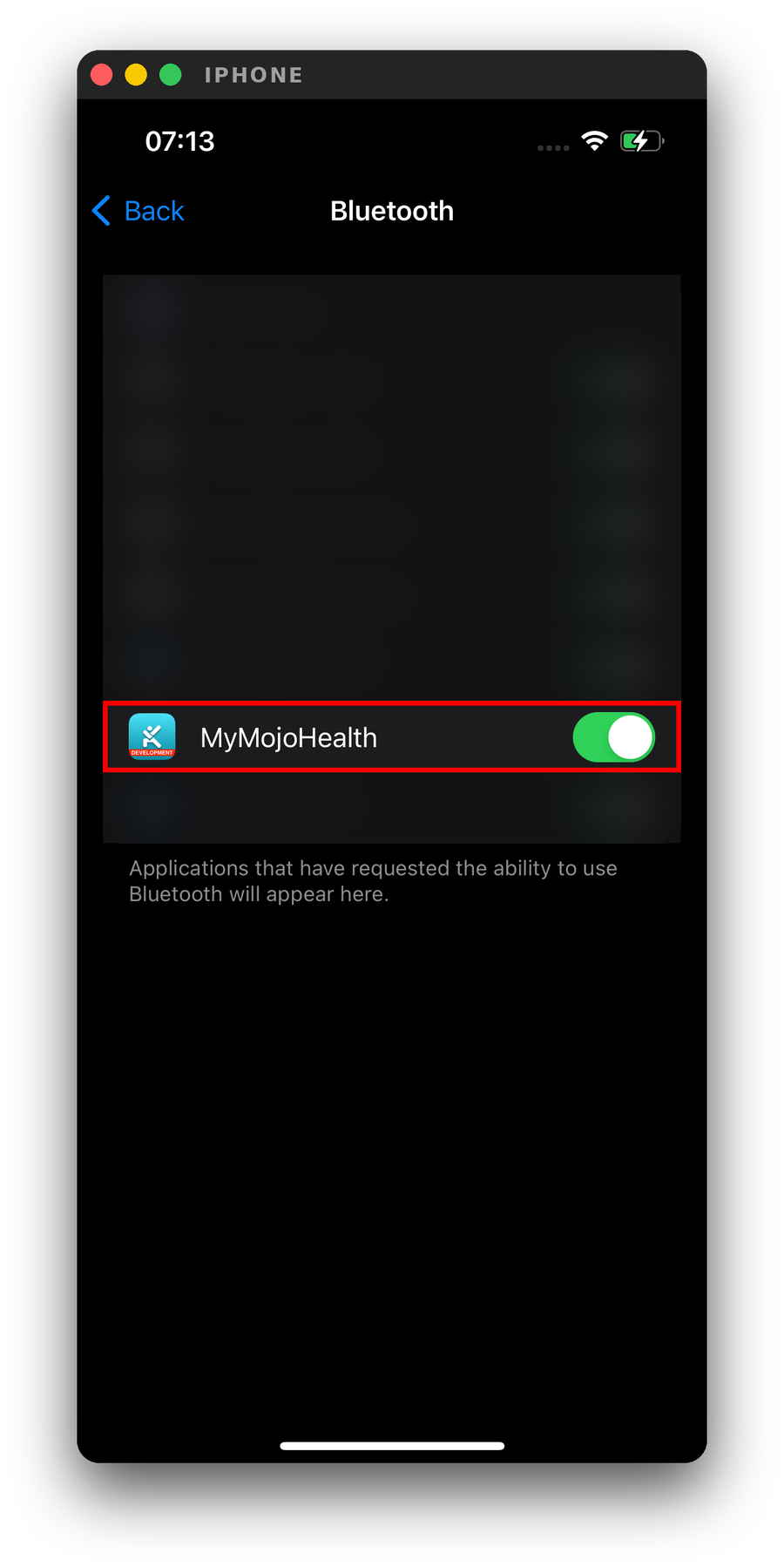
In your iPhone’s Settings > Privacy & Security > Bluetooth, make sure MyMojoHealth is turned on.
- Return to MyMojoHealth and try syncing again.Keep the app open on your screen and your iPhone unlocked until syncing finishes. Avoid switching to another app during the sync.
Start pairing your meter from inside the MyMojoHealth app. Do not start pairing from your iPhone’s Settings > Bluetooth menu.
If syncing works, you do not need to continue.
Choose your issue
- The app cannot find your meter: go to What to do if the app cannot find your meter.
- The app finds your meter but cannot connect: go to What to do if the app finds your meter but cannot connect.
- The app displays a message: go to What to do if the app displays a message.
What to do if the app cannot find your meter
Try syncing again after each step. If syncing works, you do not need to continue.
1. Check whether your meter is connected to another device
If you have used your meter with another phone or tablet, temporarily turn off Bluetooth on that device to prevent it from reconnecting while you troubleshoot.
If your meter shows a Bluetooth icon, a blinking icon usually means the meter is available to connect. A steady icon usually means it is already connected to another device.
2. Make sure your meter is on and check its batteries
Your meter must be on for the app to find it. If the screen has gone blank, turn the meter back on before trying to sync.
Low batteries are a common reason the app cannot find a meter, even when the meter’s screen looks normal. If the meter shows a low-battery warning, or you have not replaced the batteries recently, replace them according to your meter’s user manual.
3. Close and reopen MyMojoHealth
On an iPhone without a Home button, swipe up from the bottom of the screen and pause in the middle. On an iPhone with a Home button, double-click the Home button.
Find the MyMojoHealth app preview and swipe it up to close it. Then reopen the app and try syncing again.
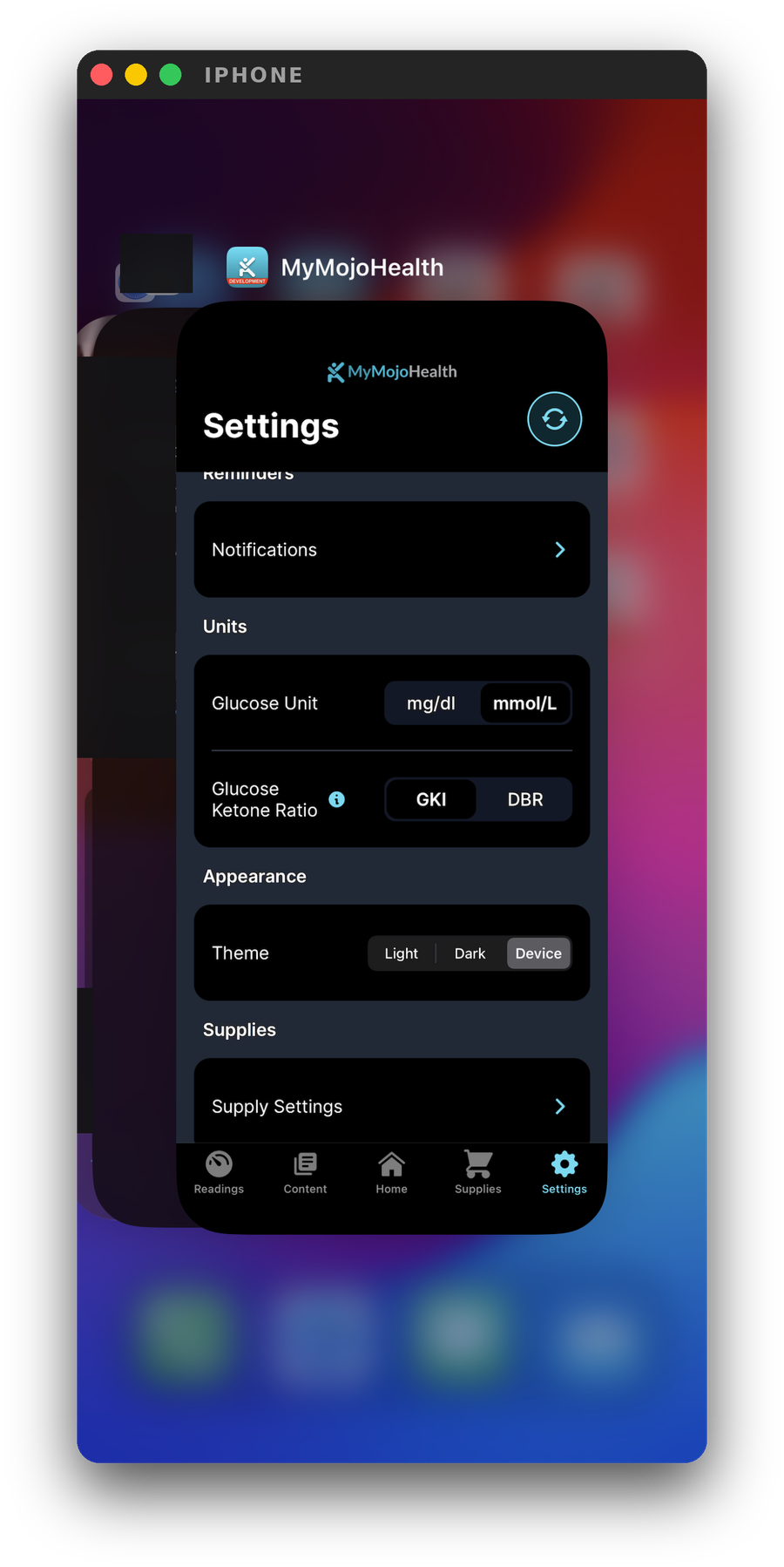
Swipe up on the MyMojoHealth app preview to close it.
4. Turn Bluetooth off and back on in Settings
Go to Settings > Bluetooth. Turn Bluetooth off, wait 10 seconds, then turn it back on.
Use Settings for this step. The Bluetooth button in Control Center does not fully turn Bluetooth off.
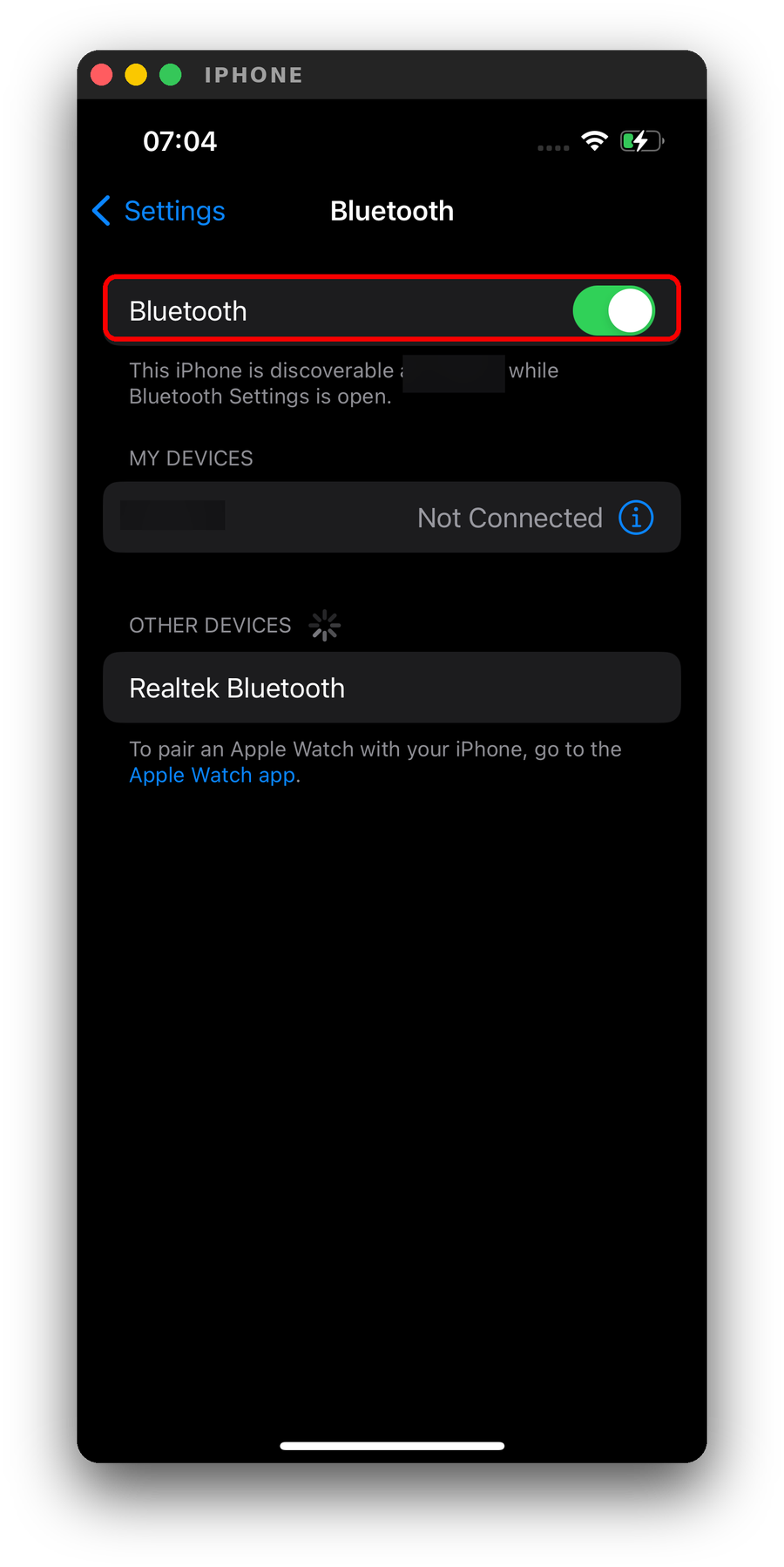
Use the Bluetooth switch in Settings to turn Bluetooth off and back on.
5. Restart your iPhone
Go to Settings > General > Shut Down, then drag the slider to turn off your iPhone.
Wait 10 seconds after it shuts down. Then press and hold the side button until the Apple logo appears. Once your iPhone restarts, open MyMojoHealth and try syncing again.
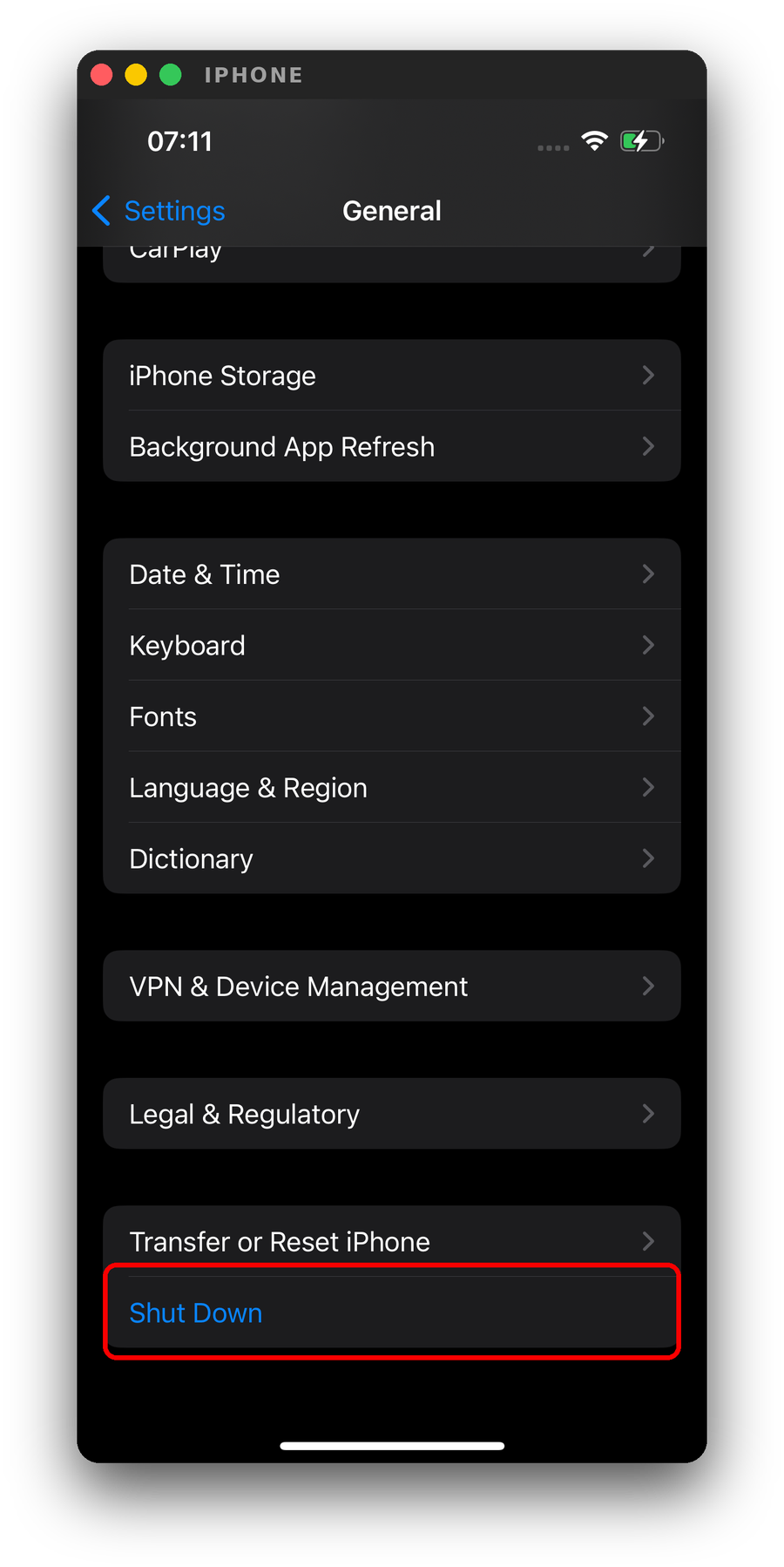
Go to Settings > General > Shut Down to turn off your iPhone.
6. Keep your iPhone unlocked while searching and syncing
Keep MyMojoHealth open on your screen until the search and sync finish.
If your screen locks too quickly, go to Settings > Display & Brightness > Auto-Lock and temporarily choose a longer time.
If Low Power Mode is enabled, temporarily turn it off in Settings > Battery. Depending on your iOS version, you may need to tap Power Mode to find it.
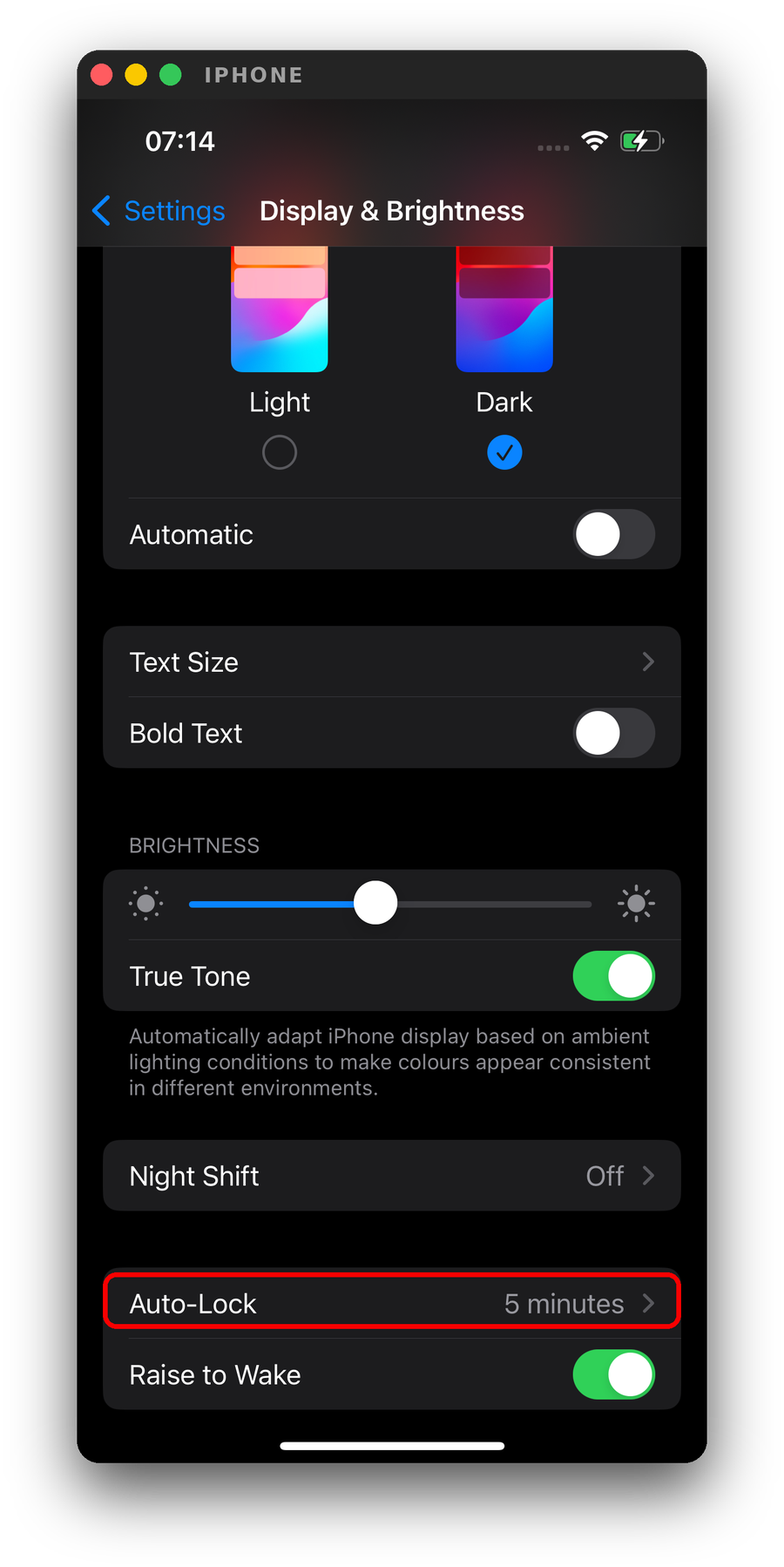
Choose a longer Auto-Lock time while troubleshooting.
After troubleshooting, restore your preferred Auto-Lock and battery settings.
A note for anyone who has read our Android instructions: iPhone does not need Location switched on to find your meter, and MyMojoHealth does not use Location to find it. You can skip that step.
If you are still unable to sync your meter, please contact our support team for help. You can email us at support@keto-mojo.com.
What to do if the app finds your meter but cannot connect
Try syncing again after each step. If syncing works, you do not need to continue.
1. Temporarily disconnect other Bluetooth accessories
If you are using Bluetooth accessories, such as AirPods, a fitness tracker, or your car’s audio system, temporarily disconnect them and try syncing again.
You can reconnect them after troubleshooting.
2. Check whether another device is connecting to your meter
If you have used your meter with another phone or tablet, temporarily turn off Bluetooth on that device.
If someone else in your household uses MyMojoHealth with your meter, ask them to turn off Bluetooth on their device while you sync.
3. Make sure you selected the correct meter
If more than one meter appears, compare the serial number shown in the app with the serial number on your meter.
To check your saved meter, go to Settings > Data > Meter > Synced Meters in MyMojoHealth. The meter is identified by “SN” followed by the last four digits of its serial number.
4. Remove your meter from the app and add it again
In MyMojoHealth, go to Settings > Data > Meter > Synced Meters.
Tap Remove next to your meter, then tap Yes to confirm.
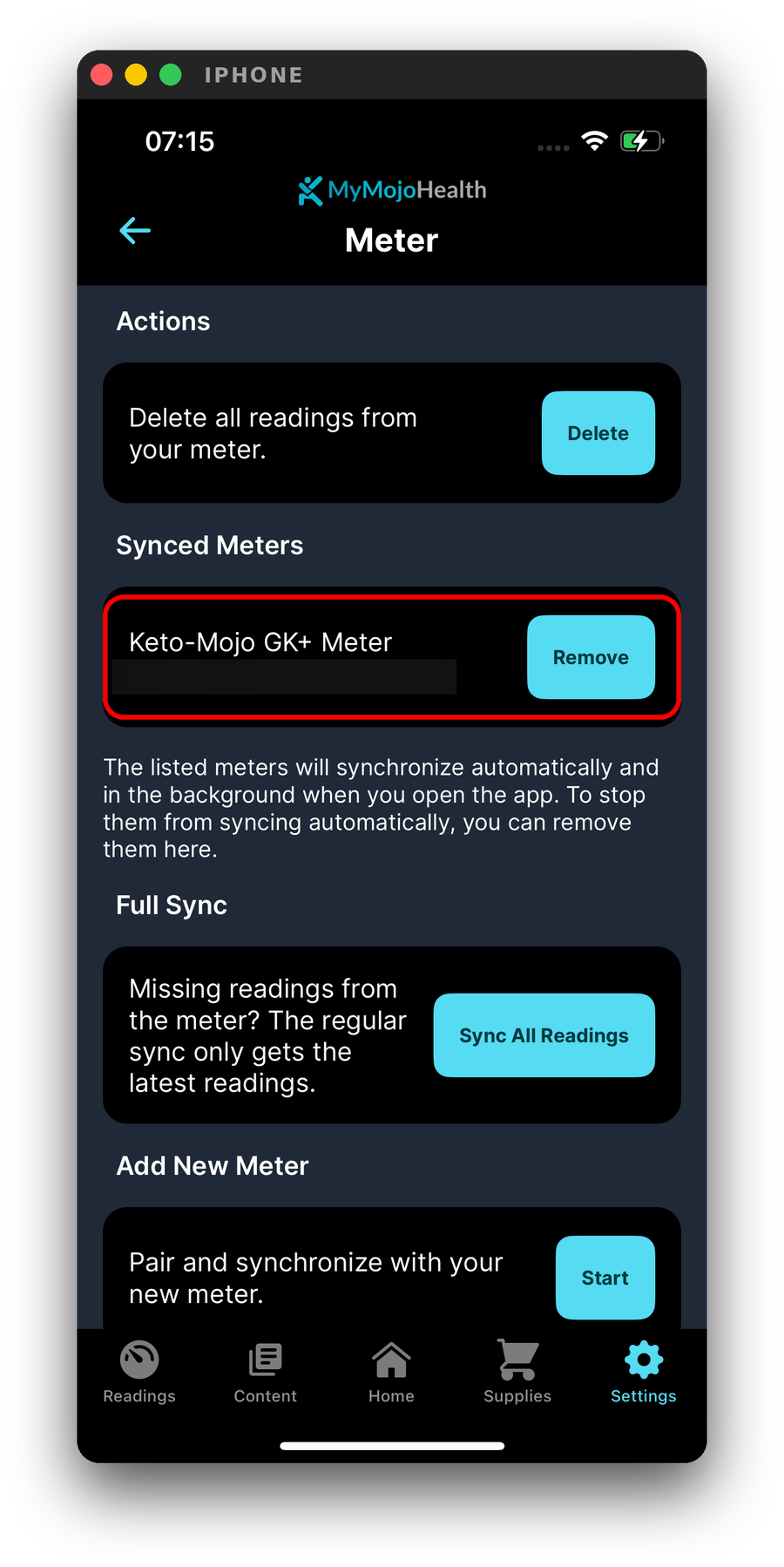
Tap Remove next to your meter, then confirm.
Next, tap Add New Meter, select Start, and follow the on-screen setup instructions.
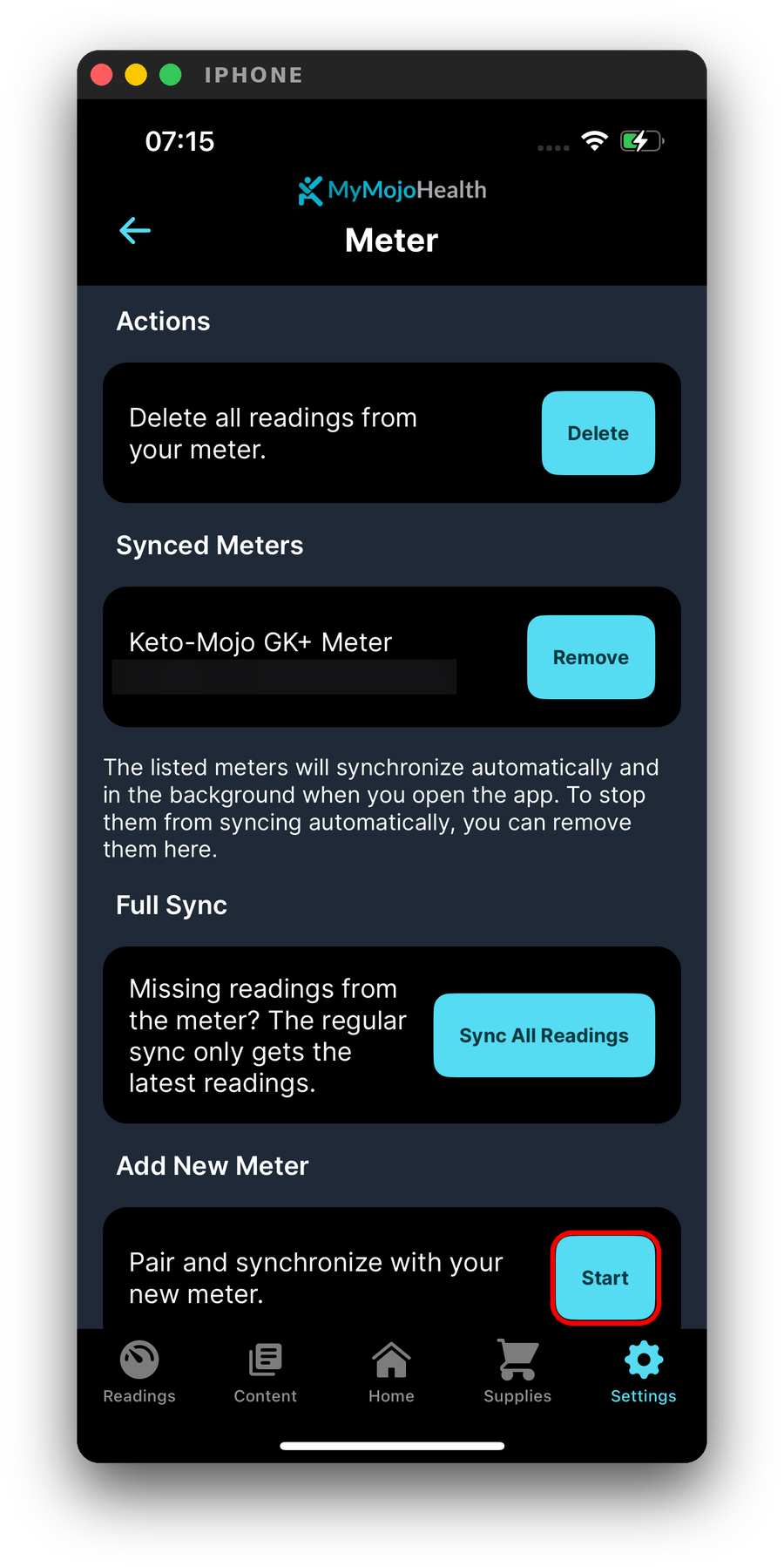
Tap Start to begin setting up your meter again.
When your meter appears, check the serial number. If it matches your meter, tap Yes, This is My Device.
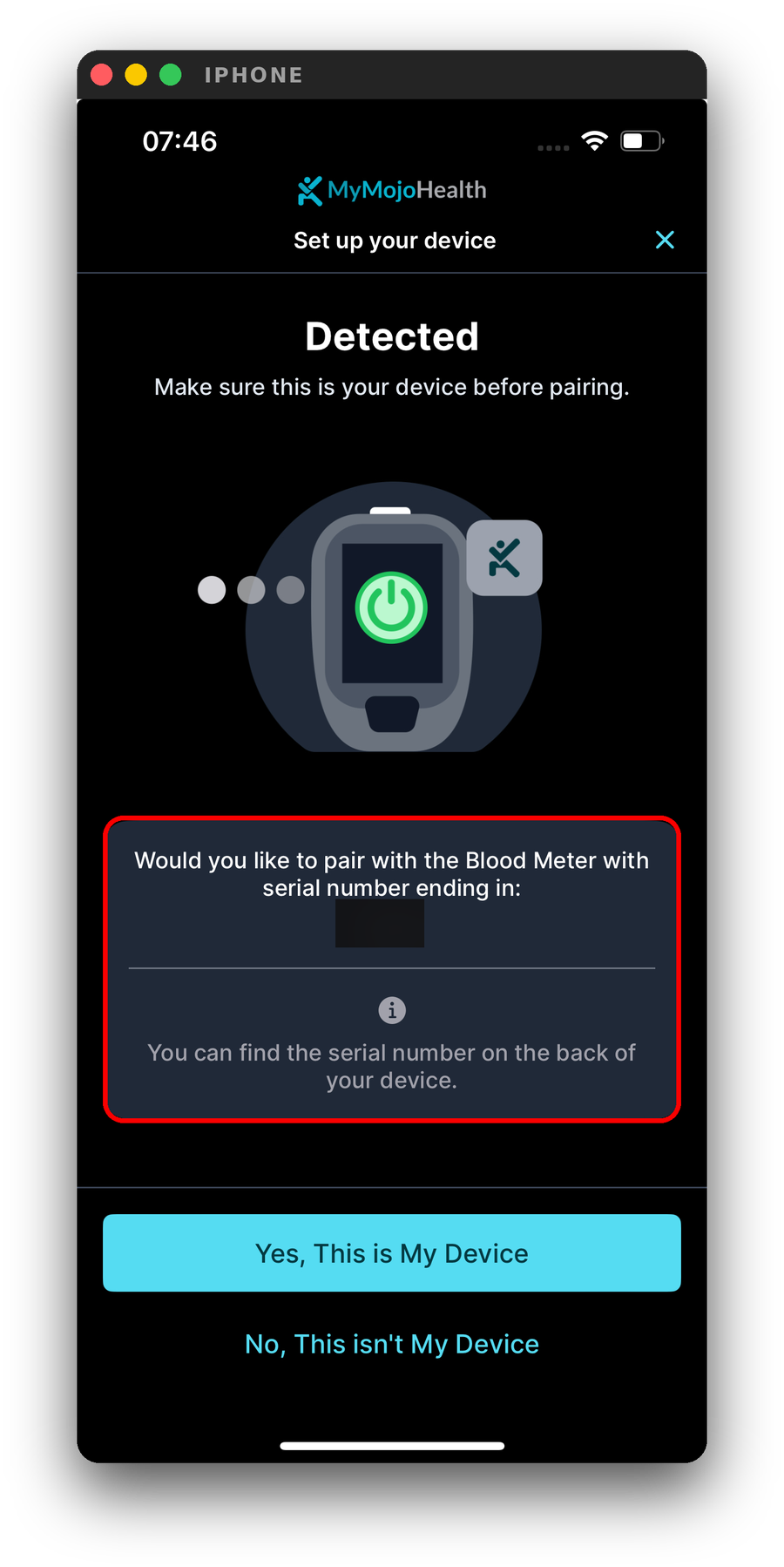
Confirm that the serial number matches your meter before continuing.
If you are still unable to connect and sync your meter, please contact our support team for help.
What to do if the app displays a message
Enable Bluetooth
Bluetooth is turned off on your iPhone. Go to Settings > Bluetooth and turn it on. Then return to MyMojoHealth and try syncing again.
Enable Bluetooth Access
MyMojoHealth needs permission to use Bluetooth to connect to your meter.
Go to Settings > Privacy & Security > Bluetooth and turn on access for MyMojoHealth. Then return to the app and try syncing again.
If the message includes a Settings button, you can tap it to open your iPhone’s settings and allow Bluetooth access.
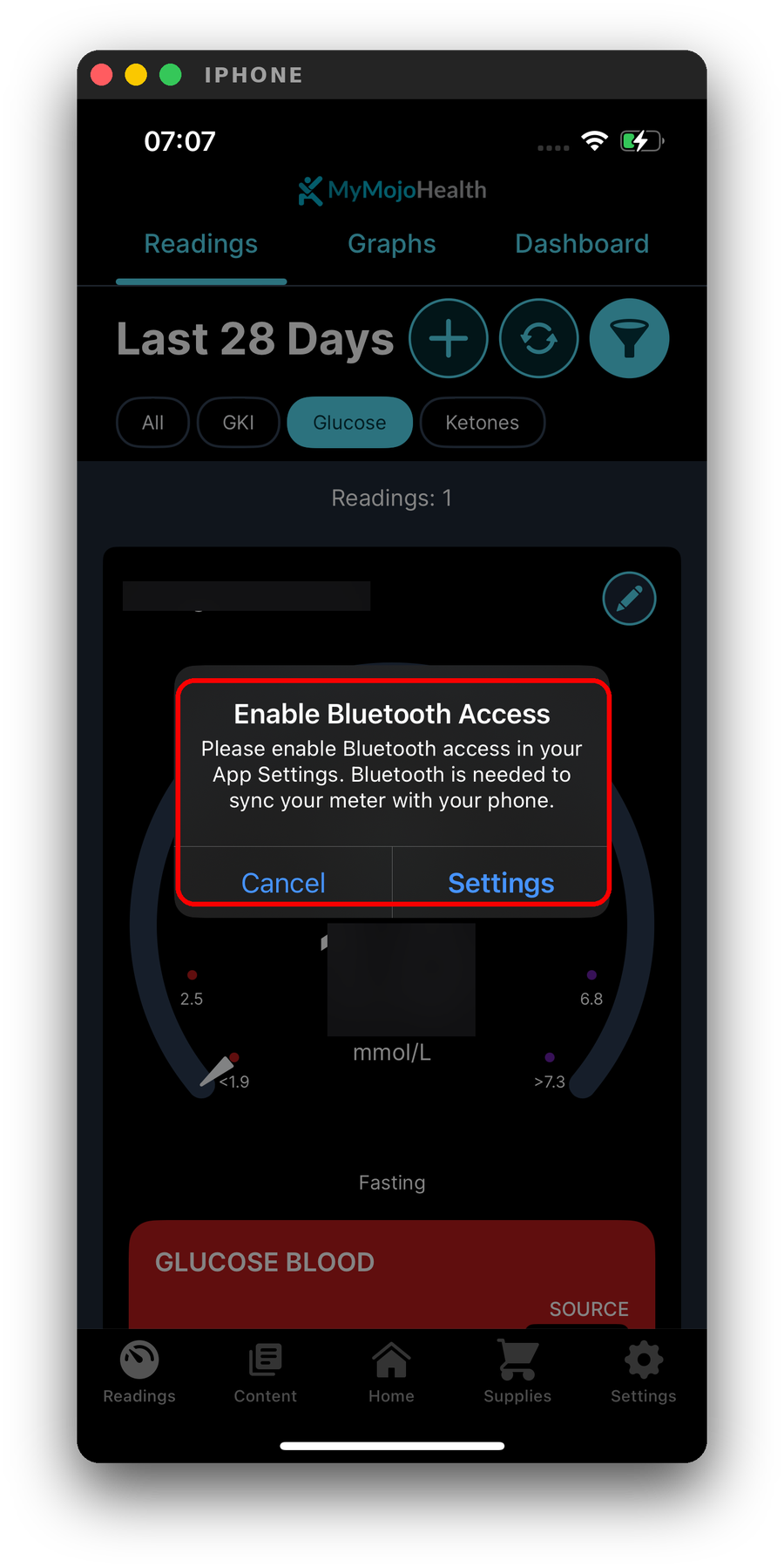
Allow Bluetooth access so MyMojoHealth can connect to your meter.
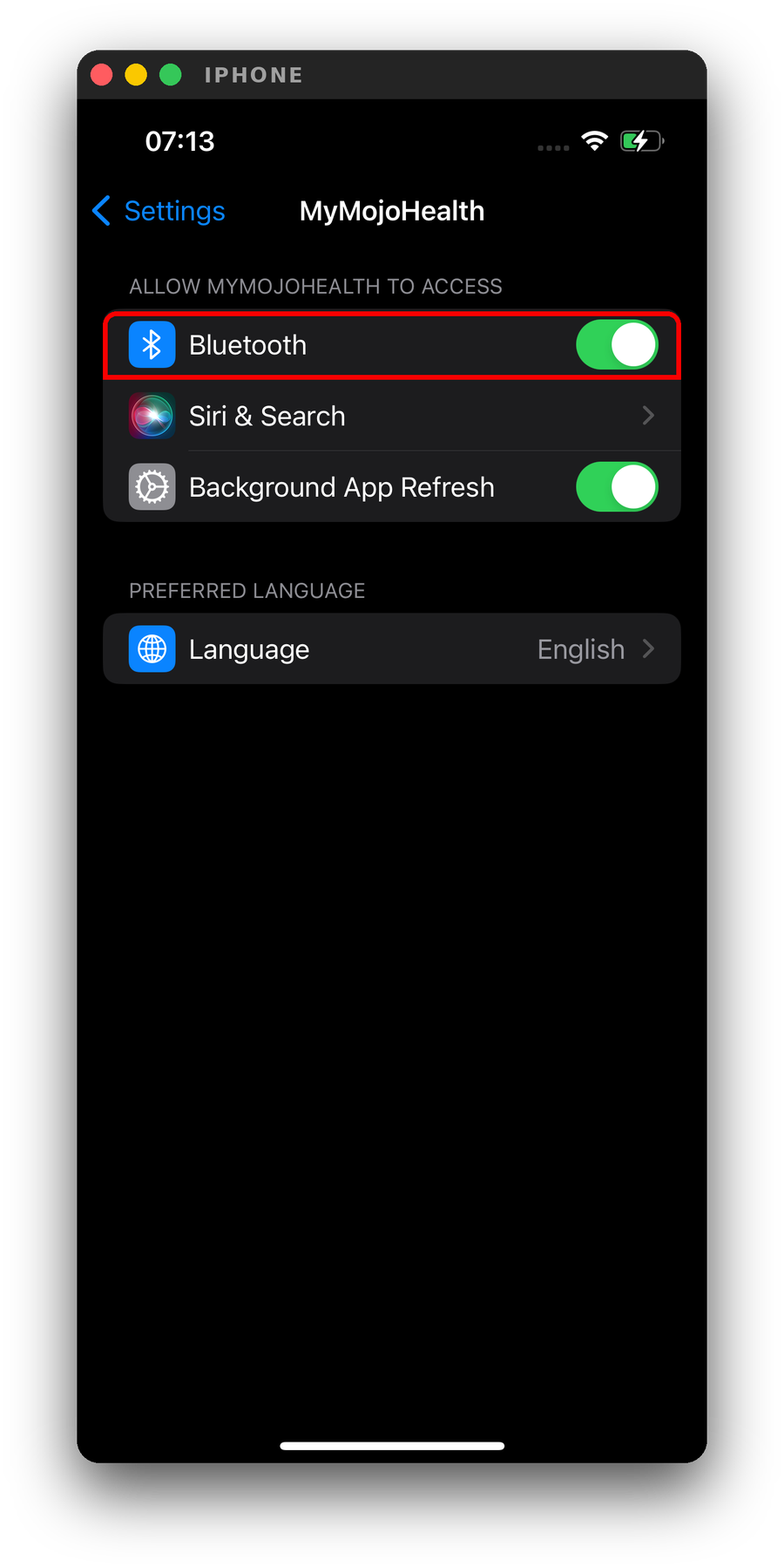
Tapping Settings in the message opens this page, which you can also find in Settings > Apps > MyMojoHealth. Make sure Bluetooth is turned on.
Your meter is full
Your meter’s reading storage is full. Follow the instructions in the app to sync or back up your readings before deleting any readings from the meter.
Once your meter is connected, you can also check Settings > Data > Meter for the available options.
Still not syncing?
Please contact our support team at support@keto-mojo.com before trying the advanced steps below. Information from your app and recent sync attempts can help us investigate the issue.
Contact support through the app
In MyMojoHealth, open Settings and tap Visit Help Center, near the top under “Can’t find what you are looking for?”
If you are on a sync error screen, you can also tap Get Help.
Send your app information
If available, use Send App Information in the Help Center. This shares technical details with our support team, including your iPhone model, iOS version, app version, meter serial numbers, and recent sync logs.
Please also tell us:
- What happens when you try to sync: the app cannot find your meter, or it finds your meter but cannot connect or complete the sync.
- Any error message you see, such as Enable Bluetooth or Enable Bluetooth Access.
- Which troubleshooting steps you have already tried.
If you cannot use Send App Information
Please include the details above, along with:
- Your meter model and serial number.
- Your iPhone model and iOS version, available in Settings > General > About.
Advanced troubleshooting
Please contact our support team at support@keto-mojo.com before trying these steps.
Deleting the app can permanently remove readings stored only on your iPhone. Before deleting it, confirm that your readings are saved to your MyMojoHealth account.
Check for an iOS update
Go to Settings > General > Software Update. If an update is available, follow the on-screen instructions to install it.
If you are using a beta version of iOS, let our support team know. Troubleshooting may differ for beta software.
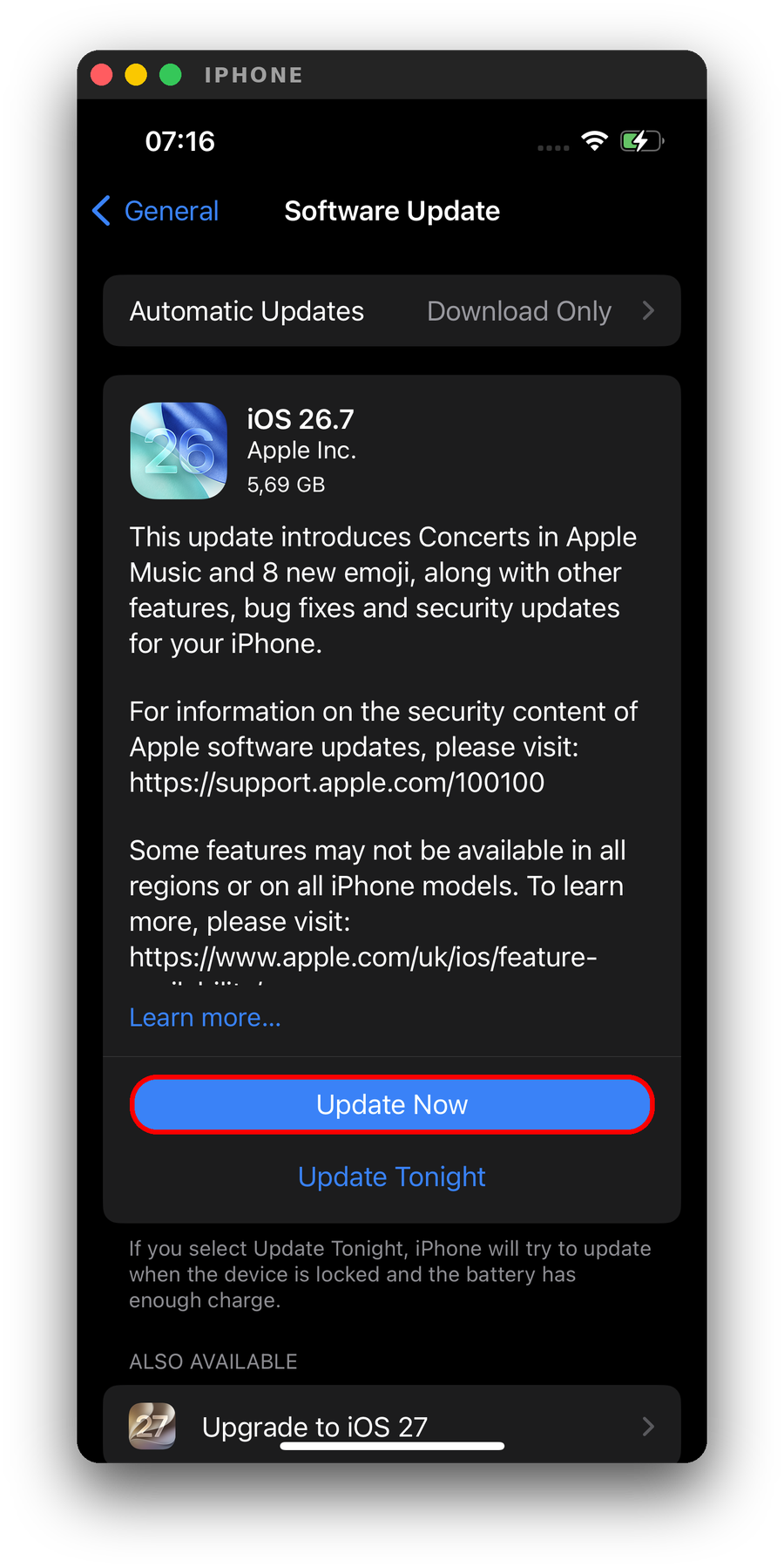
Check for available updates in Settings > General > Software Update.
Offload and reinstall MyMojoHealth
Offloading removes the app while retaining its documents and data on your iPhone.
- Go to Settings > General > iPhone Storage > MyMojoHealth.
- Tap Offload App and confirm.
- When offloading finishes, tap Reinstall App.
- Open MyMojoHealth and try syncing again.
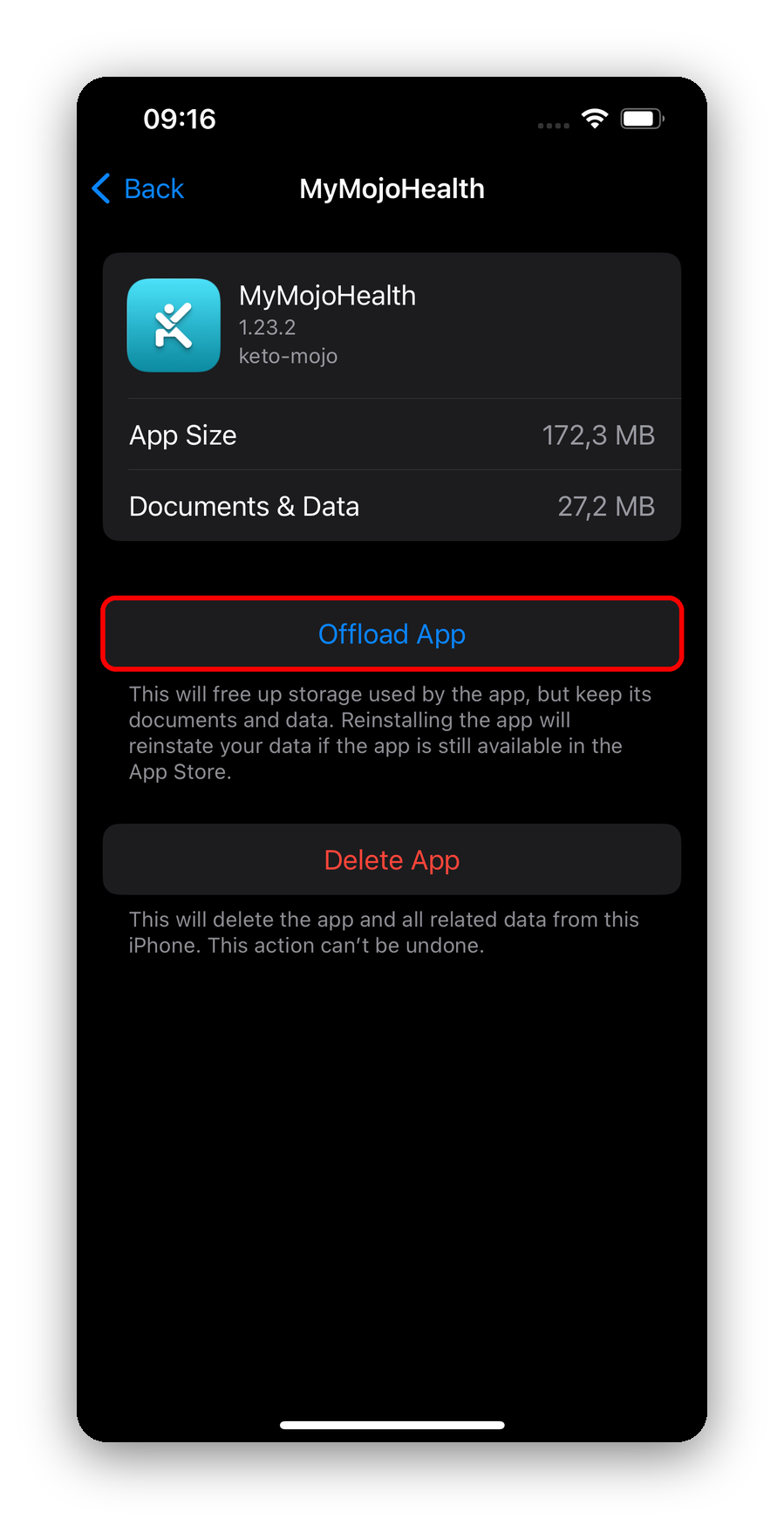
Select Offload App, then Reinstall App. Do not select Delete App for this step.
Delete and reinstall MyMojoHealth
Only try this as a final step, with guidance from our support team.
Readings stored only in the app may be permanently lost when you delete it. Syncing readings from your meter to your phone does not, by itself, confirm that they are saved to your account. To keep your readings, you need a MyMojoHealth account: if you do not have one, create it before deleting the app.
Before deleting the app:
- Sign in to your MyMojoHealth account, or create one, and allow your readings to sync to your account.
- Confirm that the readings you want to keep appear in your account at mymojohealth.com, preferably using another device. If you cannot confirm this, contact support before continuing.
- Once your readings are confirmed as saved, go to Settings > General > iPhone Storage > MyMojoHealth.
- Tap Delete App and confirm.
- Reinstall MyMojoHealth from the App Store and sign in to your account.
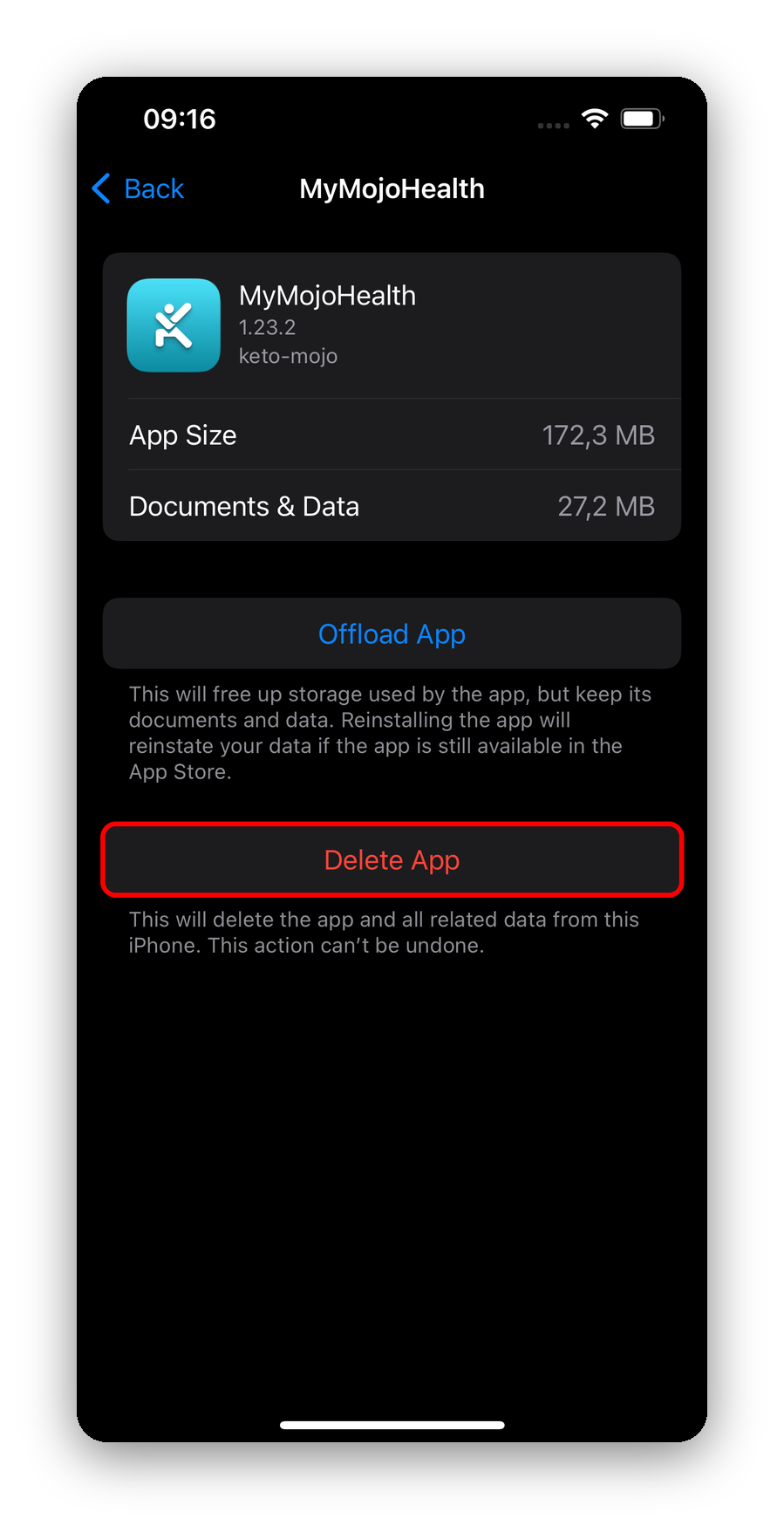
Only select Delete App after confirming that your readings are saved to your account.
If you are unsure whether your readings are saved, please contact Keto-Mojo customer support. We can help you check before you proceed. You can email us at support@keto-mojo.com.